
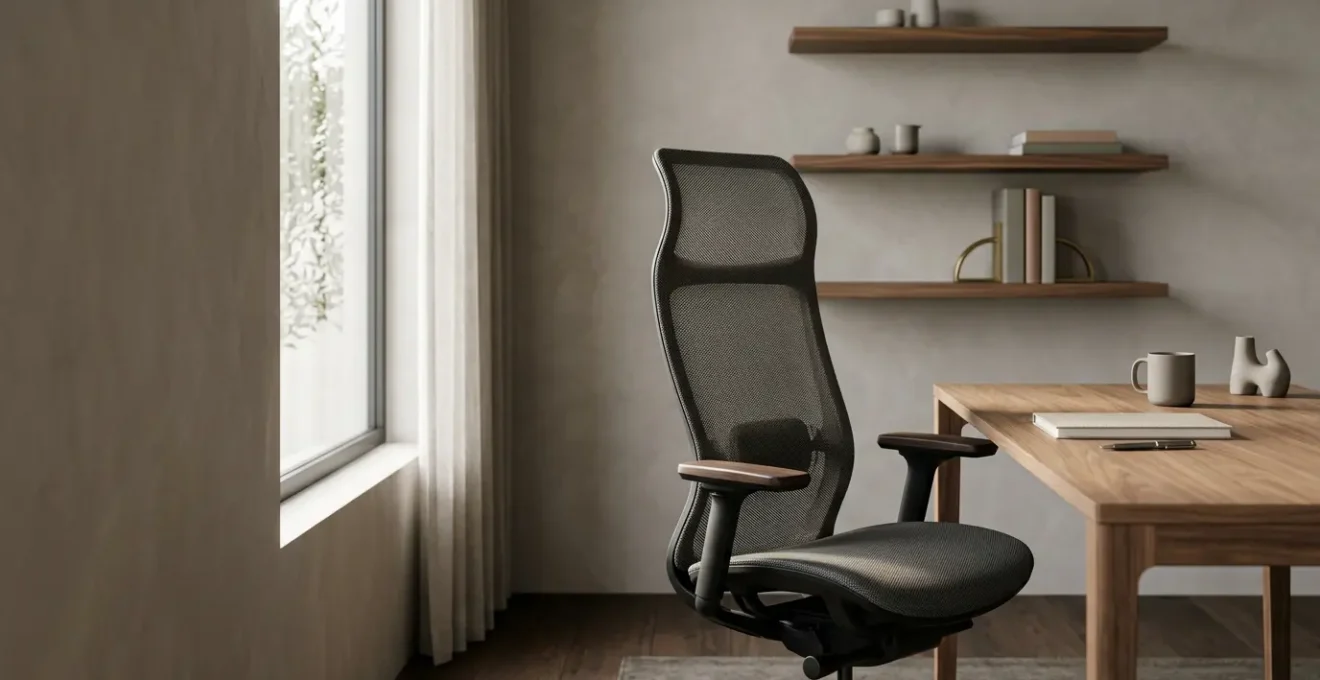
In summary:
- Your video call background is not a passive backdrop; it’s an active tool that influences others’ perception of your competence through spatial psychology.
- True executive comfort comes from ergonomic performance (like breathable mesh chairs), not traditional status symbols like leather.
- Achieving a professional on-camera look relies on a precise, three-point lighting system and calibrated monitor height to protect your posture.
- Aesthetic discipline, shown through meticulous cable management and intentional decor, signals control and attention to detail.
- A well-designed office is an asset that must be used; consistent on-camera presence is vital for visibility and career progression in a remote world.
In the digital boardroom, your authority is judged in a fraction of a second, framed by the pixels of a webcam. As an executive, every video call is a performance, and your home office is the stage. The stakes are higher than ever, yet many leaders inadvertently sabotage their presence with makeshift setups that scream « temporary » rather than « in command. » The common advice—buy an expensive chair, clean your desk—misses the fundamental point. These are superficial fixes to a much deeper architectural problem.
The challenge isn’t just about looking professional; it’s about engineering a space that sustains you. It’s about ensuring your physical well-being through uncompromising ergonomics, allowing you to remain focused and comfortable through hours of high-stakes negotiations. Many believe a leather chair or a large oak desk is the answer, but these are often just status symbols that fail the test of true biomechanical integrity. The real solution lies in understanding the principles that govern both perception and posture.
This is where the architect’s mindset becomes crucial. The key isn’t simply to decorate a room, but to design an integrated system where ergonomics and the psychology of power converge. It’s about architecting a space that projects effortless authority while supporting your body’s every need. We will move beyond the platitudes to explore the precise geometry of an effective workspace, from the science of lighting to the non-negotiable details of monitor height and cable management. This guide will provide the blueprint for transforming your home office from a domestic compromise into a strategic command center.
To help you construct this environment, we will deconstruct the key elements of an executive home office. This article breaks down the essential architectural and ergonomic decisions you need to make to build a workspace that works for you, not against you.
Summary: A Blueprint for the High-Performance Executive Home Office
- Why a Cluttered Domestic Background Undermines Your Authority in Board Meetings?
- Which Protects Your Lumbar Spine Better Between Mesh Task Chairs and Leather Executive Seats?
- How to Position Your Desk for Optimal Natural Lighting on Professional Webcams
- The Monitor Height Mistake That Causes Chronic Cervical Neck Strain
- How to Hide Bulky Peripherals and Cables to Maintain an Executive Aesthetic
- Why Silent Completion of Tasks Damages Your Promotion Prospects in Remote Hubs?
- How to Calibrate Your Desk Height Precisely to a 90-Degree Elbow Angle
- How to Use Adjustable Standing Desks Correctly to Cure Chronic WFH Lower Back Pain
Why a Cluttered Domestic Background Undermines Your Authority in Board Meetings?
Your background on a video call is not a neutral space; it is an active signal that communicates volumes about your level of control, professionalism, and focus. A disorganized or overly personal background—piles of laundry, distracting domestic items, or chaotic shelves—does more than just look unprofessional. It actively works against you by imposing a cognitive burden on everyone else in the meeting. Instead of focusing on your strategic insights, their brains are subconsciously trying to process the visual noise behind you.
This isn’t just a matter of perception; it’s rooted in cognitive science. When viewers are presented with a visually complex scene, their ability to process key information diminishes. In fact, a 2025 study in Cognitive Research found that search performance declined significantly as display clutter increased. In a board meeting context, this means your arguments lose impact because you’ve inadvertently created a distracting environment. Your authority is undermined because you appear unable to command your own space, which can translate to a perceived inability to command a team or a project.
The solution is to apply a principle of visual hierarchy. Your background should be intentionally designed to make you the clear focal point. This doesn’t mean it must be a sterile white wall. A curated background, such as a wall with a single piece of impactful art, a well-organized bookshelf with curated objects, or a simple, textured surface, communicates intentionality and sophistication. It tells your audience that you have considered every detail of your presentation—including the stage itself. You are demonstrating control not just over the meeting agenda, but over your entire professional environment.
Ultimately, a clean, composed background eliminates distractions and allows your expertise and leadership to take center stage. It’s a non-verbal assertion of your authority and a critical component of executive presence in the digital age.
Which Protects Your Lumbar Spine Better Between Mesh Task Chairs and Leather Executive Seats?
For decades, the high-backed leather chair was the undisputed symbol of executive power. It was imposing, traditional, and visually communicated seniority. However, from a purely architectural and ergonomic standpoint, this legacy is built on a flawed foundation. When it comes to all-day comfort and genuine spinal support during long work sessions, the modern, high-performance mesh task chair is unequivocally superior. The choice is not between tradition and modernity, but between passive aesthetics and active biomechanical integrity.
The primary failure of many traditional leather chairs is their lack of breathability and dynamic support. Leather, being a solid material, traps heat and moisture, leading to discomfort and fatigue over several hours. More importantly, their padding often compresses and fails to provide the targeted, responsive support your lumbar region requires. A mesh chair, by contrast, is engineered for performance. Its woven suspension material conforms precisely to the unique curve of your spine, distributing weight evenly and minimizing pressure points. This is not just about comfort; it’s about maintaining proper posture and preventing musculoskeletal strain.
The technical superiority of mesh is quantifiable. For example, high-quality mesh can offer up to 6.5 times the airflow of solid materials like leather, a critical factor for thermal comfort in any climate. This focus on material science is what separates a true ergonomic tool from a piece of decorative furniture.
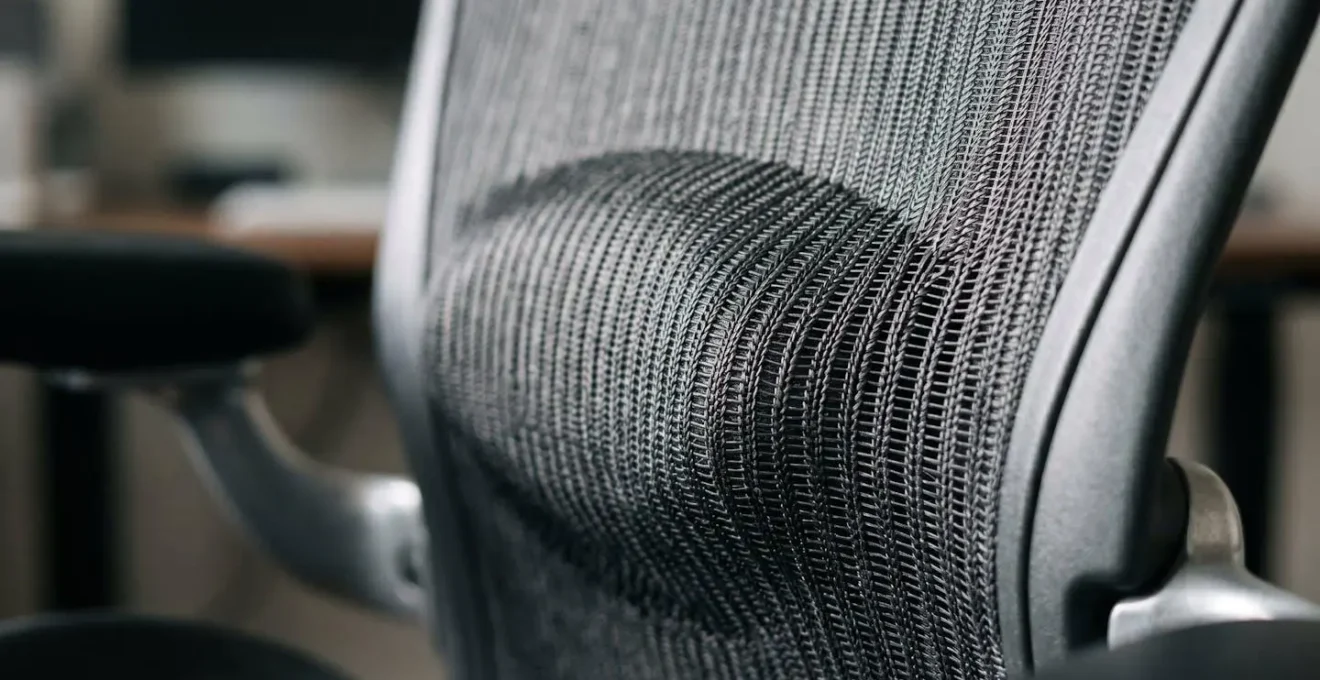
As the image above illustrates, the structure of a modern mesh chair is designed to provide tensioned, dynamic support. The chair moves with you, flexing and adjusting to micro-movements, which encourages blood flow and reduces the static load on your spine. A leather chair is a throne; a mesh chair is a cockpit. One is for sitting, the other is for performing. For the modern executive, whose work is a marathon of focus and decision-making, the choice is clear.
How to Position Your Desk for Optimal Natural Lighting on Professional Webcams
In cinematography, lighting isn’t just for illumination; it’s used to sculpt features, create mood, and direct the audience’s focus. The same principle applies to your video calls. Poor lighting—such as being backlit by a bright window or lit harshly from above—can cast unflattering shadows, obscure your facial expressions, and make you appear tired or disengaged. Mastering your lighting is one of the most powerful and cost-effective ways to command respect on camera.
The common advice to simply « face a window » is a good starting point, but it’s incomplete. Natural light is ideal, but it’s variable and often insufficient on its own. An architect’s approach involves creating a controlled, consistent lighting environment that mimics the flattering qualities of natural light. This means augmenting, not just relying on, the window. The goal is to create soft, diffused light that minimizes harsh shadows and renders your features clearly and professionally. This is achieved by using a large light source (like a softbox or a lamp with a large shade) or by bouncing light off a neutral-colored wall.
For a truly professional setup, you should replicate a classic three-point lighting system, the standard in film and photography. Even a simplified version will dramatically elevate your presence. Moreover, the quality of light matters as much as the quantity. For the most natural look, you should use light sources with a color temperature that matches daylight. Specifically, lighting experts recommend a 5000K-6500K color temperature range to simulate a clear, bright day, which ensures that your skin tones look natural and professional on camera. This technical detail is what separates an amateur setup from an executive one.
Action Plan: Implementing a Three-Point Lighting System
- Key Light: Position your main, brightest light source at a 30-45 degree angle to your camera. This should provide about 75% of the total light on your face.
- Fill Light: Place a secondary, dimmer light source on the opposite side of the camera, at the same angle. Its purpose is to « fill in » and soften the shadows created by the key light.
- Back Light: Position a third light behind you and out of the camera’s frame, aimed at your head and shoulders. This creates a subtle rim of light that separates you from your background, adding depth and a professional finish.
By controlling your lighting with this level of intention, you are not just making yourself more visible; you are shaping how you are perceived. You appear more alert, more engaging, and more in command.
The Monitor Height Mistake That Causes Chronic Cervical Neck Strain
While much attention is given to the chair and desk, the most insidious ergonomic mistake in a home office setup often lies with the monitor. Placing your monitor too low is a near-universal error that forces you into a forward-hunching posture, creating a cascade of biomechanical problems. This isn’t a minor comfort issue; it’s a direct cause of chronic cervical neck strain, upper back pain, and tension headaches that can erode your focus and productivity.
The principle of ergonomic geometry dictates a clear rule: the top of your monitor’s screen should be at or slightly below your eye level. When the monitor is too low, you are forced to tilt your head down to see the screen. This seemingly small adjustment places immense strain on your cervical vertebrae. Your head weighs approximately 10-12 pounds, and for every inch you tilt it forward, the effective weight on your spine doubles or triples. This forces the muscles in your neck and upper shoulders into a constant state of tension to support the load.
As the ergonomics specialists at Cardinus explain, this posture has severe consequences. In their guide on the topic, they state:
When you lean forward, your head automatically tilts back extending the neck and compressing the discs between the cervical vertebrae, resulting in tightening the muscles in the neck, upper shoulders and between or beneath the shoulder blades to bear its weight.
– Cardinus Ergonomics, Vision Needs, Monitor Height and Neck Pain – Ergonomics Guide
This chronic compression and muscle tension is not only painful but also a significant drain on your energy. The fix is simple but non-negotiable: elevate your monitor. Whether you use a dedicated monitor stand, a stack of books, or an adjustable monitor arm (the most flexible and architecturally clean solution), you must bring the screen to the correct height.
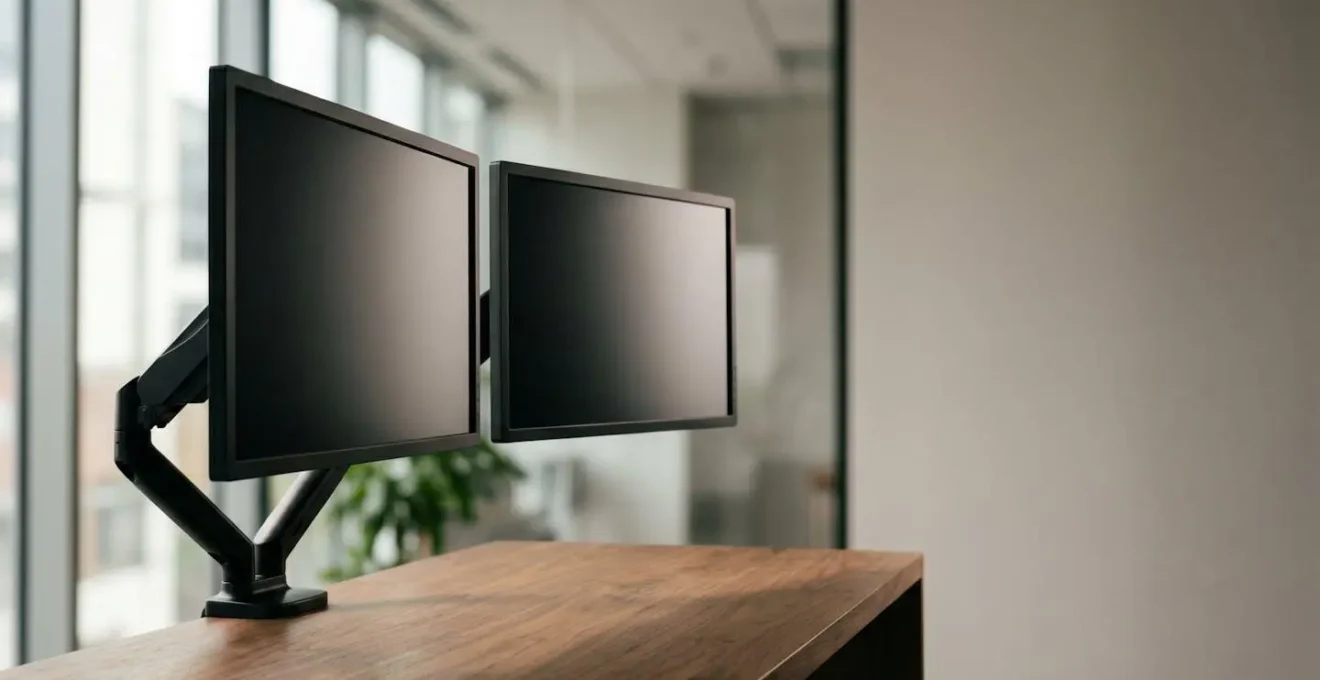
For dual-monitor setups, both screens should be at the same height, positioned seamlessly next to each other to create a single, continuous panoramic view. This prevents you from having to constantly dip or turn your head. Correcting your monitor height is a foundational act of self-preservation for any executive who spends their day in front of a screen.
How to Hide Bulky Peripherals and Cables to Maintain an Executive Aesthetic
You can have the finest ergonomic chair and a perfectly lit background, but if a chaotic nest of wires is visible on or under your desk, the entire illusion of control shatters. Cable clutter is the visual equivalent of static noise; it signals disorganization and a lack of attention to detail. For an executive, projecting an image of effortless command is paramount, and this extends to the smallest details of your workspace. Aesthetic discipline is not about minimalism for its own sake; it’s about demonstrating purpose in every element of your environment.
Hiding peripherals and managing cables is an architectural task that requires planning. The goal is to make technology feel integrated and invisible, not bolted on as an afterthought. Start by subtracting. The first step is to opt for high-quality wireless peripherals wherever possible—a premium wireless keyboard, mouse, and headset eliminate the most visible culprits. This single move can transform the look of your desk surface from cluttered to curated.
For the essential cables that remain (monitors, docking stations, chargers), the strategy is containment. A high-quality, under-desk cable management tray is the single most important investment you can make. This is a metal or plastic basket that mounts directly to the underside of your desk, providing a dedicated channel to house a power strip and all excess cable length. This lifts everything off the floor, creating clean lines and making the space feel instantly larger and more organized. For cables running from the floor to the desk, a fabric or plastic cable spine or sleeve gathers them into a single, neat column that blends into the leg of the desk.
Finally, consider the placement of bulky items like docking stations or external hard drives. Instead of letting them take up valuable surface area, use under-desk mounts or adhesive solutions to attach them to the underside of the desk or the back of a monitor. The technology is still instantly accessible, but it is removed from the visual field. This disciplined approach ensures that the only things on your desk are the tools you are actively using, reinforcing an image of focus and control.
Why Silent Completion of Tasks Damages Your Promotion Prospects in Remote Hubs?
In a traditional office, your presence and hard work are passively visible. Colleagues see you arriving early, staying late, and collaborating in meeting rooms. In a remote-first world, this ambient visibility disappears. If you simply complete your tasks silently with your camera off, you become functionally invisible. Your excellent work might get done, but the *perception* of your engagement, dedication, and leadership qualities can diminish significantly, directly impacting your career trajectory.
The home office you have so carefully designed is more than a workspace; it is your personal broadcast studio and the primary stage for your professional persona. Refusing to use it is like an actor rehearsing perfectly but never taking the stage for the actual performance. Turning your camera on during meetings is not a matter of vanity or micromanagement; it’s a strategic act of communication. It allows you to transmit crucial non-verbal cues—a nod of agreement, a look of focused concentration, an encouraging smile—that build trust and rapport in a way that an avatar or a black screen never can.
This isn’t just a subjective feeling; it’s a widely recognized factor in team dynamics. A culture of camera-on participation fosters a stronger sense of connection and psychological safety. In fact, workers believe turning cameras on during video meetings increases productivity, engagement, and trust, according to a survey by Zoom and Morning Consult. For an executive, demonstrating engagement is not optional. Your visible presence sets the standard for your team and signals that you are fully invested in the conversation.
Your meticulously designed background, your professional lighting, and your confident posture all work together to build your executive brand. By keeping your camera off, you are withholding a key asset. You are choosing to communicate with less impact and are forfeiting opportunities to demonstrate leadership. In the competitive landscape of remote work, consistent, professional visibility is not a nice-to-have; it is an essential component of career advancement.
Key takeaways
- An executive office must be designed for both ergonomic performance and the psychological projection of authority.
- Key ergonomic adjustments, such as monitor height and a 90-degree elbow angle, are non-negotiable for preventing chronic pain.
- A disciplined aesthetic, achieved through meticulous cable management and intentional lighting, is a powerful non-verbal signal of control and professionalism.
How to Calibrate Your Desk Height Precisely to a 90-Degree Elbow Angle
After establishing the correct monitor height, the next critical point in your workspace’s ergonomic geometry is the interface between your body and your desk. The goal is to achieve a neutral, relaxed posture where your arms and wrists are not under strain. The benchmark for this is the 90-degree elbow angle. This precise calibration is the key to preventing repetitive strain injuries (RSI) like carpal tunnel syndrome and tendonitis, which are common among professionals who spend hours typing.
To find your ideal desk height, follow this procedure. First, sit in your ergonomic chair with your feet flat on the floor and your back properly supported. Let your arms hang loosely at your sides. Now, bend your elbows to a 90-degree angle, keeping your wrists straight and in line with your forearms. The height of your hands in this position is your ideal typing height. Your desk and keyboard should be adjusted so that your hands can rest on the keyboard without you having to raise your shoulders or bend your wrists up or down.

As the image demonstrates, this position is relaxed and neutral. Your shoulders should be down, not hunched, and your forearms should be roughly parallel to the floor. If your desk is too high, it will force you to shrug your shoulders, creating tension in your neck and upper back. If it’s too low, it will cause you to bend your wrists upwards, compressing the nerves and tendons in your wrist. An adjustable-height desk is the ideal tool for this calibration, but if you have a fixed-height desk, you should adjust your chair height to achieve the correct arm position, and then use a footrest if your feet no longer touch the floor.
This simple adjustment has a profound impact on your long-term health and daily comfort. It allows you to work for extended periods without accumulating the micro-traumas that lead to chronic pain, ensuring your focus remains on your work, not on your discomfort.
How to Use Adjustable Standing Desks Correctly to Cure Chronic WFH Lower Back Pain
The rise of the adjustable standing desk has been a significant step forward in workplace ergonomics. However, simply owning one is not a cure for the chronic lower back pain that plagues many work-from-home professionals. The desk is a tool, and like any advanced tool, its benefits are only unlocked through correct use. Using it improperly—by standing for too long, with poor posture, or on a hard surface—can be just as detrimental as sitting all day.
The core principle behind a standing desk’s effectiveness is the introduction of dynamic movement. As the U.S. National Institute for Occupational Safety and Health (NIOSH) points out, the human body is not designed for static postures, whether sitting or standing. Their guidelines highlight that poor posture and static loads are core risk factors for musculoskeletal disorders. The primary benefit of a standing desk is that it facilitates regular posture changes, engaging different muscle groups and promoting blood flow.
The correct way to use a standing desk is to alternate between sitting and standing throughout the day. A good starting ratio is 30 minutes of standing for every 60 minutes of sitting. When you do stand, your posture is critical. Your monitor height and elbow angle rules still apply. You should stand with your weight evenly distributed on both feet, wearing supportive footwear, ideally on an anti-fatigue mat to reduce strain on your joints and back. The desk should be set to the height that maintains that perfect 90-degree elbow angle while standing.
By embracing this sit-stand-switch philosophy, you transform the desk from a simple piece of furniture into an active tool for wellness. It becomes a system for breaking the cycle of static load that is the true culprit behind chronic WFH back pain. This dynamic approach to work not only alleviates physical discomfort but also can lead to increased energy and focus, allowing you to finish your day feeling as strong and capable as when you started.
By applying these architectural and ergonomic principles, you are not merely building a home office. You are designing a high-performance environment that supports your health, enhances your focus, and strategically projects the authority your executive role demands on every call.